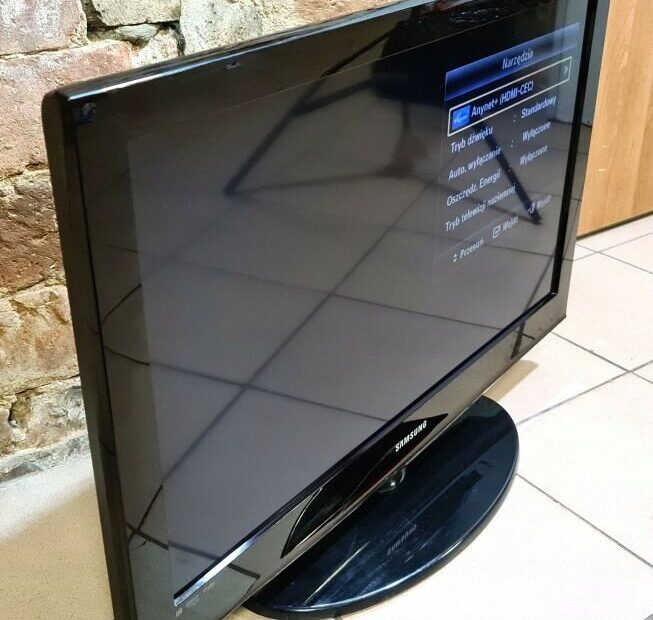
Many people live far from their family. Sometimes someone at home is sick and you want to see them. Sometimes you want to monitor a room, a shop, or a business for security. If you already have an unused old TV and/or an old laptop, with a simple setup, those devices can become a 24/7 live-monitoring screen for free.
This guide shows how to do it using:
- Any old TV
- Any old laptop (Windows)
- Any Wi-Fi IP camera (IMOU, Reolink, TP-Link, etc.)
- Or even an old USB webcam
Everything here uses free software only.
What devices you can use
If you have an old outdated Smart TV
If your old TV is Android TV, Samsung Smart TV, LG WebOS, etc., you may not need an old laptop at all.
You can directly install apps like VLC or the camera’s official app to view the stream.
If your TV is not a Smart TV
You can use any of these to turn it into a monitoring screen:
- Old Windows laptop (preferred for this tutorial)
- Mi Box / Android TV box
- Old Fire Stick
- Raspberry Pi
- Old PC running ChromeOS Flex / FydeOS / Ubuntu (for lower power use)
This article uses a Windows laptop, because most people already have one.
What you need
- Old TV with HDMI
- Old Windows laptop
- Wi-Fi IP camera (IMOU or similar)
or - Old USB webcam / laptop camera
- HDMI cable
- Stable Wi-Fi connection
Free software:
- VLC Media Player (for IP cameras)
https://www.videolan.org - OBS Studio (for webcams)
https://obsproject.com
Step 1 — Set up the camera
A. If using an IMOU or other Wi-Fi IP camera
- Install the camera’s app on your phone.
- Connect the camera to your home Wi-Fi.
- Log in to your router’s admin panel → find the camera’s IP address.
- Create or confirm the camera’s username/password.
- Prepare the RTSP link.
For IMOU, RTSP usually looks like:rtsp://username:password@CAMERA_IP:554/Streaming/Channels/101(Model-specific RTSP formats can be verified from iSpyConnect database.)
B. If using laptop webcam / USB webcam
No IP address needed. You will use OBS Studio.
Step 2 — Connect the laptop to the TV
- Plug HDMI from laptop to TV.
- Select the correct HDMI input on the TV.
- On Windows press Windows + P and choose:
- Duplicate → same picture on both screens
- Second screen only → TV becomes the only screen
Step 3 — Keep the laptop awake 24/7
Windows settings:
- Open Control Panel → Power Options.
- Set Turn off display = Never.
- Set Put computer to sleep = Never.
- Disable screensaver.
- Keep the laptop plugged in.
For lower electricity use, later you can install ChromeOS Flex, FydeOS, or Ubuntu.
Step 4 — Show IP camera on TV using VLC
This is the simplest 24/7 monitoring setup.
- Install VLC from the link above.
- Open VLC → Media → Open Network Stream.
- Paste the camera’s RTSP link.
- Click Play.
- Press F for fullscreen.
- Press Ctrl + H to hide controls.
Auto-start the camera each time
Create a file named camera.bat with this content::loop "C:\Program Files\VideoLAN\VLC\vlc.exe" --fullscreen --no-video-title-show --network-caching=1000 "rtsp://user:pass@IP:554/..." timeout 5 goto loop
Place this file in Windows Startup folder:%appdata%\Microsoft\Windows\Start Menu\Programs\Startup
Now the camera starts automatically when the laptop powers on.
Step 5 — If using a webcam, use OBS Studio
- Install OBS Studio.
- Add → “Video Capture Device”.
- Select your webcam.
- Right-click the preview → Fullscreen Projector (Preview) → Choose your TV screen.
Your TV now shows the webcam feed full-screen.
Step 6 — Optional: Record or add motion alerts
If you want recording or motion detection, you can use free NVR software:
Shinobi NVR (open source)
MotionEye (best for Raspberry Pi)
https://github.com/motioneye-project/motioneye
Both support RTSP cameras like IMOU.
Step 7 — Important security tips
- Change the camera’s default password.
- Keep the camera accessible only inside your home network.
- Do not open ports unless absolutely needed.
- Use a VPN (WireGuard) if you want remote access.
- Update router and camera firmware when possible.
Final Summary
- Old TV = display
- Old laptop = controller
- IP camera or webcam = video source
- VLC = best for IP camera feed
- OBS = best for webcam
- Everything runs for free and can operate 24/7